
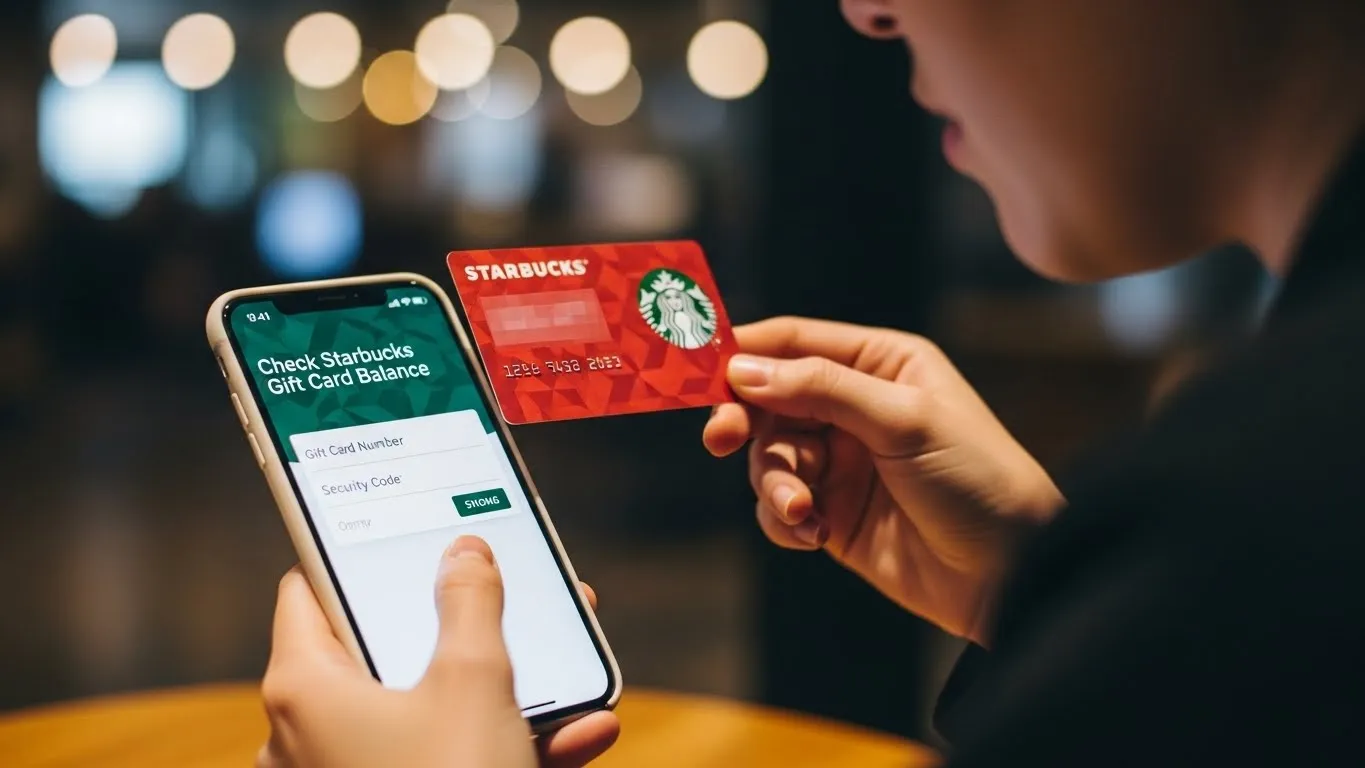
Check Starbucks Gift Card Balance Without Security Code
If you’re trying to check your Starbucks gift card balance but don’t have the security code, you’re not alone. Many users face this problem when the scratch panel is damaged, missing, unreadable, or when they only have a gift card number. The good news is that there are still a few ways to check your balance without entering the PIN.
This guide explains every working method available, what Starbucks can and cannot do, and how you can recover a damaged or missing security code so you can access your balance safely.
How to Check Starbucks Gift Card Balance Without Security Code
You normally need the security code (PIN) to check your Starbucks gift card balance online. But if the PIN is damaged, missing, or unreadable, you still have a few practical ways to find your balance. Here are the methods that actually work.
1. Check Your Balance In-Store (No Security Code Needed)
This is the easiest and most reliable method.
Steps:
- Visit any Starbucks store
- Give the barista your gift card
- Ask them to check the balance
They can scan or swipe the card with only the card number.
No PIN required.Best for:
Physical cards, scratched-off PINs, unreadable codes.
2. Add the Card to the Starbucks App (Sometimes Works)
Some Starbucks cards allow you to add them to the app even if the security code is damaged.
Try this:
- Open the Starbucks app
- Go to Payment → Add Card
- Enter the card number
- If the app doesn’t ask for the PIN → you’re in
- Your balance will load instantly
Note:
Newer cards almost always require a PIN.
Older cards sometimes don’t.
3. Check E-Gift Cards Without a PIN
Starbucks e-gift cards always show both:
- Card Number
- Security Code
If you didn’t receive the email or can’t find it:
- Ask the sender to resend the e-gift email
- Check spam or promotions folder
Once you reopen the correct email, the balance will display automatically in the Starbucks app after adding it.
4. Contact Starbucks Customer Service
If your PIN is damaged or unreadable, Starbucks can help.
They can:
- Verify card ownership
- Recover your balance
- Transfer funds to a new card
How to contact them:
- Phone: 1-800-782-7282
- App → Help → Contact Support
- Starbucks website support form
You’ll need:
- Card number
- Photo of the damaged card
- Proof of purchase (if available)
5. If You Only Have a Card Number (No Physical Card)
If someone gave you just the number:
- Starbucks cannot check balance online without a PIN
- But customer service can verify ownership
- They may issue a replacement card or transfer funds
What To Do If Your Starbucks PIN Is Damaged or Missing
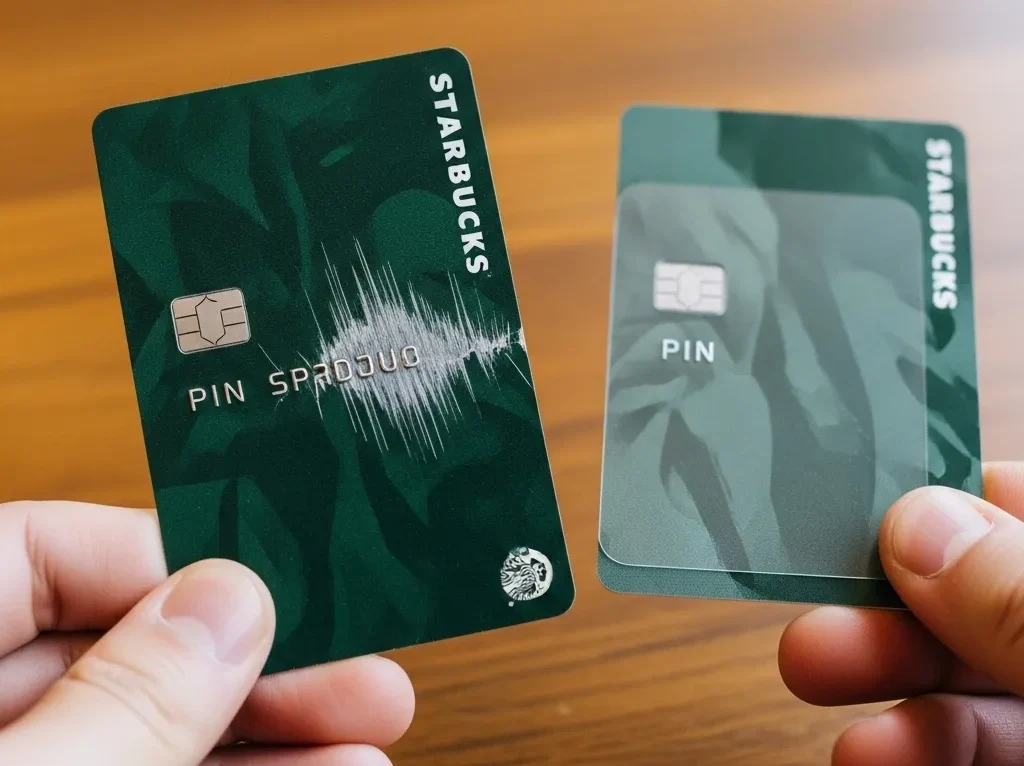
- Take the card to a Starbucks store for a manual balance check.
- Contact Starbucks Support with the card number and a clear photo.
- If verified, they can transfer the balance to a new card.
- Keep the receipt or proof of purchase for faster help.
How to Recover a Starbucks E-Gift Card PIN
- Search your email inbox for “Starbucks Card” or “eGift.”
- Check spam/junk/promotions folders.
- Ask the sender to resend the e-gift email.
- The original email always includes both the card number and PIN.
Common Issues When Checking Balance Without the Security Code
1. Card not scanning in-store
Ask the barista to manually enter the number.
2. PIN scratched too hard
Provide a photo to customer service for replacement.
3. Balance not showing in the app
Log out → log back in → re-add the card.
4. Card shows “invalid”
Card may not be activated; check in-store for confirmation.
Conclusion
You cannot check your Starbucks card balance online without the security code, but you can check it in-store, through support, or by recovering your e-gift email. If your PIN is damaged or missing, Starbucks can verify and transfer your balance. Use the method that matches your situation so you can quickly access your card balance without stress.
case for security reasons.